
NotebookLM for Online Learners: 12 Hidden Features, Study Workflows, and How to Pair It With Your Courses
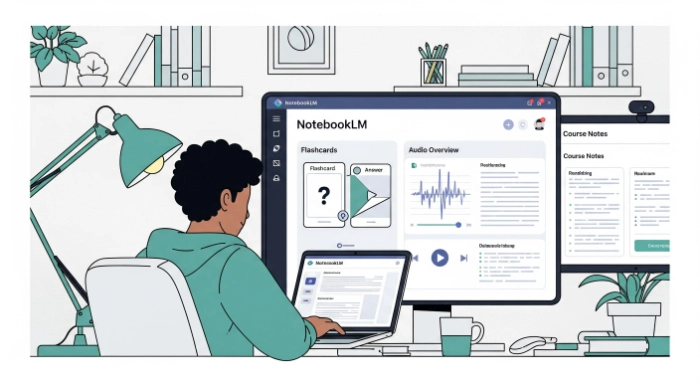
Discover 12 hidden NotebookLM features built for online learners. Real study workflows, audio overviews for lectures, and tool pairings that work.
If you are taking online courses while working full-time, you already know the real challenge isn't finding information. It's organizing it fast enough to actually learn before the next deadline hits. NotebookLM for online students has quietly become one of the most useful tools for solving that problem, and most people are only using a small slice of what it can do.
NotebookLM is Google's AI research and study tool that works only from the documents, links, and recordings you give it. It does not pull random answers from the open internet unless you specifically tell it to. That single design choice is why it has become a go-to NotebookLM study workflow for working professionals chasing a certification and recent grads trying to specialize without paying for another full degree.
This guide walks through 12 features many users miss, how to build a real study system around them, and which tools pair well with NotebookLM so your course material actually sticks instead of sitting in a folder you never open again.
What Is NotebookLM and Why Online Learners Are Using It
NotebookLM is a free AI tool from Google that turns your own course materials into something you can talk to, listen to, and quiz yourself on. You upload PDFs, slides, lecture notes, or links, and it builds answers strictly from that content.
That matters for online learning because most online programs hand you a pile of scattered materials and expect you to organize them yourself. NotebookLM does that organizing for you, then helps you study what's actually in front of you instead of generic internet content that may not match your syllabus.
Free-tier users can add up to 50 sources per notebook, with each source containing up to 500,000 words. Paid plans raise that ceiling to roughly 300-600 sources per notebook, which is enough to hold an entire semester or certification program in one place.
Who Should Be Using NotebookLM for Online Courses
NotebookLM works well for two main types of online learners.
The first is a working professional studying for a certification on nights and weekends. You don't have time to re-read a 300-page PDF twice. You need the key points pulled out fast, and you need a way to quiz yourself during a commute.
The second is a recent graduate going deeper into a specialty their degree only touched on. You're not starting from zero, but you need a faster way to connect new material to what you already know.
In both cases, the appeal of e-learning tools like NotebookLM is the same. It turns passive reading into active study without requiring you to build flashcards or outlines by hand.
12 Hidden NotebookLM Features Most Online Students Miss
Most people use NotebookLM for basic chat and summaries. Here are the features that actually change how you study.
1. Audio Overview for Lectures You Can Listen to Anywhere
NotebookLM audio overview for lectures turns your uploaded notes, slides, or readings into a podcast-style conversation between two AI hosts. It runs roughly 6 to 15 minutes and walks through your material the way two people would talk it through out loud.
This is the single best feature for commute study time. Upload this week's reading before you leave for work, and you have a custom podcast about your own course content by the time you get there.
2. EPUB and Textbook Support
NotebookLM now accepts EPUB files directly, and Google has been expanding textbook support through partnerships that bring full academic titles in as ready-made notebooks. That means you can drop in an actual assigned textbook chapter instead of converting everything to PDF first.
If your course still uses a Kindle book, you will need to extract the text first since DRM-locked Kindle files are not supported. EPUB, PDF, Google Docs, web links, and YouTube video transcripts all work without any conversion step.
3. Flashcards and Quizzes Built From Your Own Material
Instead of manually typing out flashcards, you can ask NotebookLM to generate them directly from your sources. You can tell it exactly what kind of quiz you want, including matching games or short answer questions with a cited answer key.
Every flashcard and quiz question links back to the exact page or paragraph it came from. That citation trail is what makes this different from a generic study app. A recent update also fixed how STEM equations render, so messy math and chemistry notation now show up clean on the cards instead of garbled.
4. The Notebook Guide for Instant Orientation
Click Notebook Guide and NotebookLM auto-generates an FAQ about your sources, a study guide with questions and answers, a briefing document, and a table of contents. If your sources include dates, it builds a timeline too.
This is the fastest way to get oriented before diving into a dense reading. Generate the guide first, skim it, then read the actual material with context already in place.
5. Save to Note for Building a Reference Sheet
Every time NotebookLM provides a useful summary, comparison, or explanation, you can click Save to Note to keep it in your chat history rather than losing it. Over the course of a semester, this becomes a running reference sheet of everything that actually mattered.
This solves the real problem of digging through old chats to find that one explanation you remember as helpful. The Studio panel becomes your condensed, searchable study sheet instead of a scattered conversation log.
6. Exporting Notes to Google Docs or Sheets
Saved notes don't have to stay locked inside NotebookLM. From the Studio panel, you can export any note directly to Google Docs for narrative material or Google Sheets when the information is more structured, like comparisons or data points.
This is especially useful if your program requires study logs to be submitted or if you want a portable version of your notes outside the app.
7. Turning Notes Back Into Sources
Here's a feature almost nobody talks about. You can convert your saved notes back into sources within the same notebook. That means your own observations, highlights, and synthesized takeaways become part of the material NotebookLM draws from going forward.
This creates a feedback loop in which your understanding compounds rather than resetting each session.
8. Splitting Large PDFs Into Smaller Source Chunks
Don't dump one giant 400-page textbook into a single source. Split it into chapters or themed sections instead. NotebookLM answers more accurately when it isn't sifting through hundreds of irrelevant pages to find the part you're actually asking about.
This small habit change makes a noticeable difference in answer quality, especially for dense academic material.
9. Mind Maps for Visual Learners
NotebookLM can generate a visual mind map of your sources, showing how concepts connect. If you learn better by seeing relationships rather than reading linear text, this is worth using before you start a new unit.
10. Memory That Carries Across Sessions
A recent update added memory retention that tracks past interactions within a notebook to maintain continuity, while remaining separate from your other Google account data and fully under your control to manage or turn off. For a semester-long course, that means less repeating yourself every time you open the notebook.
11. Deep Research for Filling Gaps in Your Sources
When your own materials leave a gap, NotebookLM's Deep Research feature can scan the web on your behalf, build a research plan, and return a source-grounded report you can drop straight into your notebook. It's not a replacement for your assigned readings, but it's useful when you need outside context to fully understand a concept.
12. Renaming Studio Outputs So You Can Actually Find Them Later
Once you've generated a handful of audio overviews, infographics, and study guides, they start to blur together. Renaming each one with a short label, such as "W1 Audio" or "Midterm Study Guide," makes it possible to find the right one in seconds rather than having to guess.
How to Build a NotebookLM Study Workflow That Actually Works
Having the features is one thing. Using them in order is what makes the difference.
Step One: Load and Split Your Sources
Upload your syllabus, readings, and slides as separate, organized sources rather than one massive file. Keep one notebook per course or per certification track so your source limit doesn't become a bottleneck.
Step Two: Generate the Notebook Guide First
Before you read anything in depth, generate the FAQ and briefing document. This gives you the shape of the material before you're in the weeds.
Step Three: Listen Before You Read
Generate an audio overview and listen to it during a commute, workout, or chore. You'll absorb the broad strokes passively, which makes the detailed reading afterward go faster.
Step Four: Quiz Yourself, Don't Just Re-Read
Generate flashcards or a quiz instead of rereading your notes a third time. Re-reading creates false familiarity. Actually pulling information out of your own head is what makes it stick.
Step Five: Save and Convert Your Best Insights
As you go, save anything genuinely useful to a note, and periodically convert your strongest notes back into sources. This is how your notebook gets smarter the longer you use it.
It's worth saying plainly: NotebookLM should not do all the thinking for you. The tool is excellent at surfacing facts and distributing quiz questions throughout a document, but it cannot tell you which ideas actually matter most or how concepts connect to your broader goals. That judgment still has to come from you.
Tools That Pair Well With NotebookLM
NotebookLM is strong on its own, but a few pairings make the NotebookLM study workflow even more useful.
Perplexity is good for real-time web research, while NotebookLM stays focused on the sources you've already uploaded. Use Perplexity to find new material, then bring what you find into NotebookLM as a source.
Quizlet works well if you already have flashcards built from past courses. Copy them into a notebook so you can ask follow-up questions about specific terms instead of just flipping through cards blind.
Google Docs and Sheets give your exported notes a permanent home outside the app, which matters if your program requires submitted notes or you want a backup that isn't locked inside one tool.
NotebookLM vs Traditional Online Learning Tools
Traditional learning management systems are built to deliver content to you. NotebookLM is built to help you process content you already have. The two aren't competitors. A strong web learning setup usually uses your school's LMS for assignments and deadlines, and NotebookLM as the layer that turns those assigned readings into something you actually retain.
This is the core difference between e-learning platforms in general and a tool like NotebookLM. Most platforms hand you material. NotebookLM helps you study it.
Frequently Asked Questions
What is NotebookLM used for in online learning? NotebookLM is used to turn your own course readings, lecture slides, and notes into study aids like audio overviews, flashcards, quizzes, and summaries, all grounded in the specific material you uploaded rather than generic internet content.
Is NotebookLM free for students? Yes. The free tier allows up to 50 sources per notebook, with each source holding up to 500,000 words, which covers most individual courses or certification programs.
How does the audio overview feature work? You upload your source material, and NotebookLM generates a podcast-style conversation between two AI hosts discussing that content, typically running 6 to 15 minutes, which you can listen to on a commute or during downtime.
Can NotebookLM use textbooks as a source? Yes. NotebookLM supports EPUB files directly and has expanded textbook access through publisher partnerships, so assigned textbook chapters can go straight into a notebook without first converting to PDF.
Does NotebookLM replace a learning management system? No. Your school or course platform still handles assignments, grading, and deadlines. NotebookLM works alongside that system as the tool that helps you actually study and retain the material it delivers.
What is the best way to organize NotebookLM for a full course load? Create one notebook per course or certification track rather than mixing everything into a single notebook. Split large PDFs into chapter-sized chunks so NotebookLM can answer questions more accurately.
Start Building Your Study System Today
NotebookLM for online students works best when you treat it as a study partner, not a shortcut around studying. Upload this week's readings, generate the Notebook Guide, and listen to your first audio overview before your next class or work session. The system gets better the more consistently you feed it your real course material.
Looking for more ways to make your online learning experience actually work for your schedule and your goals? Explore more study guides and course strategies on scorethat.com to keep building a learning routine that fits your life.
Also look at the following articles for more learning: